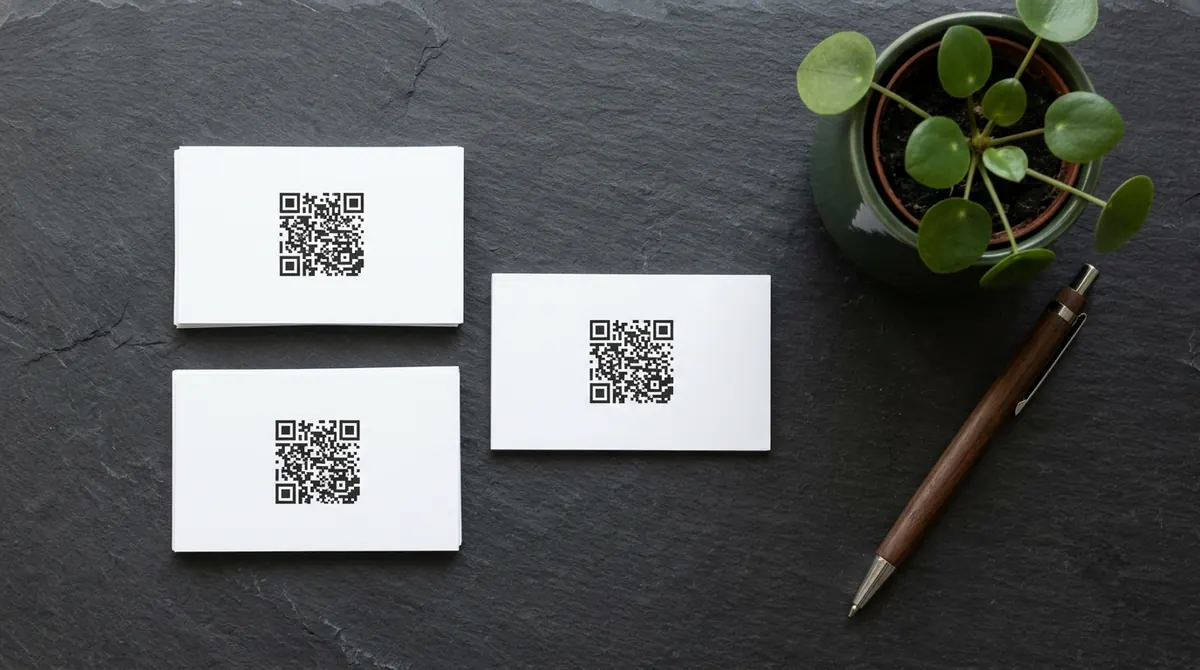
To make a vCard QR code, fill in your name, phone, email, company and website, then download it as PNG or SVG. When someone scans it, their phone opens a new contact card with your details ready to save. Your data is stored inside the code itself, so it works offline and never expires.
How to use it
- Fill in the fields you want to share. Empty fields are left out.
- Add your logo or brand colours if you like.
- Download SVG for your business card printer, or PNG for email signatures.
Key facts
| Format | vCard 3.0 |
|---|---|
| Works with | iPhone and Android contacts |
| Fields | Name, phone, email, company, job title, website, address |
| Expiry | Never |
| Tip | Fewer fields = smaller, easier-to-scan code |
Questions
Why is my vCard QR code so dense?
Every field adds data. Leave out fields you do not need, and print the code at least 2 × 2 cm (0.8 in) on a business card.
Can I update my details later?
Not in the same code: the data is inside it. Make a new code when your details change.
Will my vCard QR code expire?
Never. These are static QR codes: the data is written inside the code itself and does not go through any server, so they work forever and cannot be switched off by BarcodePal or anyone else.
Guides
Other QR code generators
- Free QR Code Generator
- WiFi QR Code Generator
- WhatsApp QR Code Generator
- Email QR Code Generator
- SMS QR Code Generator
- Phone Number QR Code Generator
- Location QR Code Generator
- Text QR Code Generator
- Instagram QR Code Generator
- YouTube QR Code Generator
- Google Review QR Code Generator
Updated: