To make a WiFi QR code, type your network name (SSID), password and security type, then download or print it. When guests point their iPhone or Android camera at it, the phone offers to join the network. The code is made in your browser, so your password is never sent to any server.
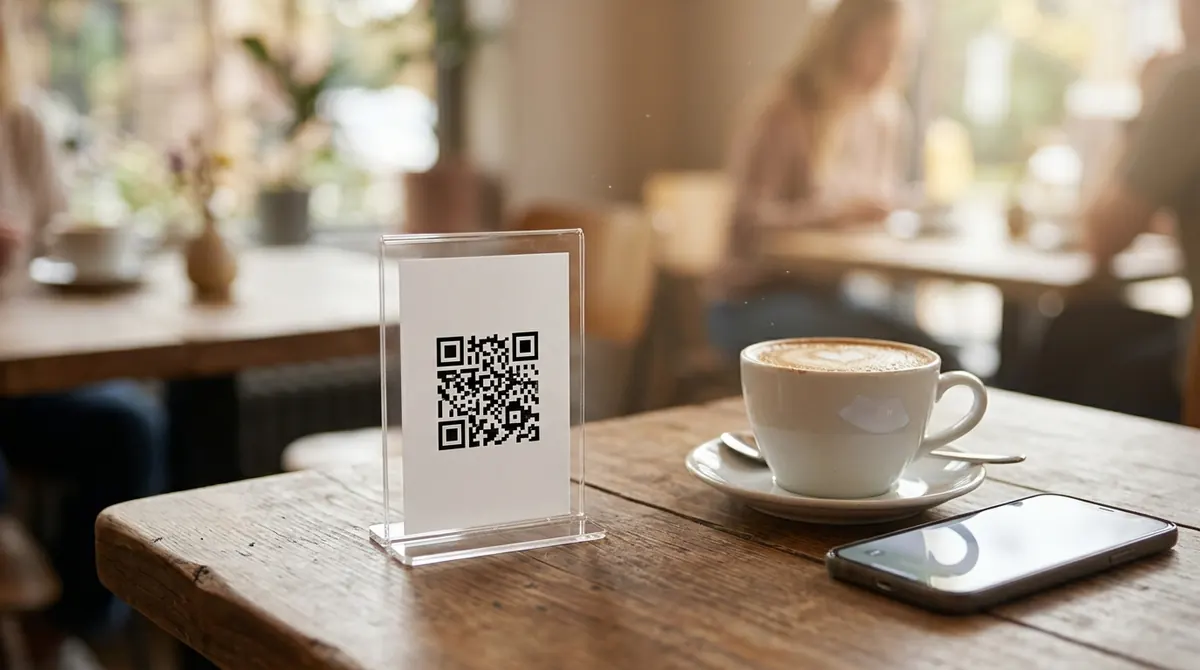
How to use it
- Type your network name exactly as it appears (it is case-sensitive).
- Type the password and choose the security type (usually WPA).
- Test it with your phone, then download or print it for your wall, table or reception.
Key facts
| Works with | iPhone (iOS 11+) and Android camera apps |
|---|---|
| Security types | WPA/WPA2/WPA3, WEP, open |
| Privacy | Made in your browser, password never uploaded |
| Expiry | Never (until you change your Wi-Fi password) |
| Used for | Homes, cafés, restaurants, hotels, offices, Airbnb |
Questions
Is it safe to put my WiFi password in a QR code?
The code is generated locally, so BarcodePal never sees your password. But anyone who scans the code can join, so only display it where you would share the password anyway, or use a guest network.
What if I change my WiFi password?
The old QR code stops working. Make a new one with the new password.
Does it work on iPhone?
Yes. On iOS 11 and later, open the Camera, point it at the code and tap the "Join network" banner.
My network name has special characters. Will it work?
Yes. Characters like ; , : and \ are escaped automatically in the Wi-Fi QR format.
Will my WiFi QR code expire?
Never. These are static QR codes: the data is written inside the code itself and does not go through any server, so they work forever and cannot be switched off by BarcodePal or anyone else.
Guides
Other QR code generators
- Free QR Code Generator
- vCard QR Code Generator
- WhatsApp QR Code Generator
- Email QR Code Generator
- SMS QR Code Generator
- Phone Number QR Code Generator
- Location QR Code Generator
- Text QR Code Generator
- Instagram QR Code Generator
- YouTube QR Code Generator
- Google Review QR Code Generator
Updated: