How to Make a QR Code With a Logo
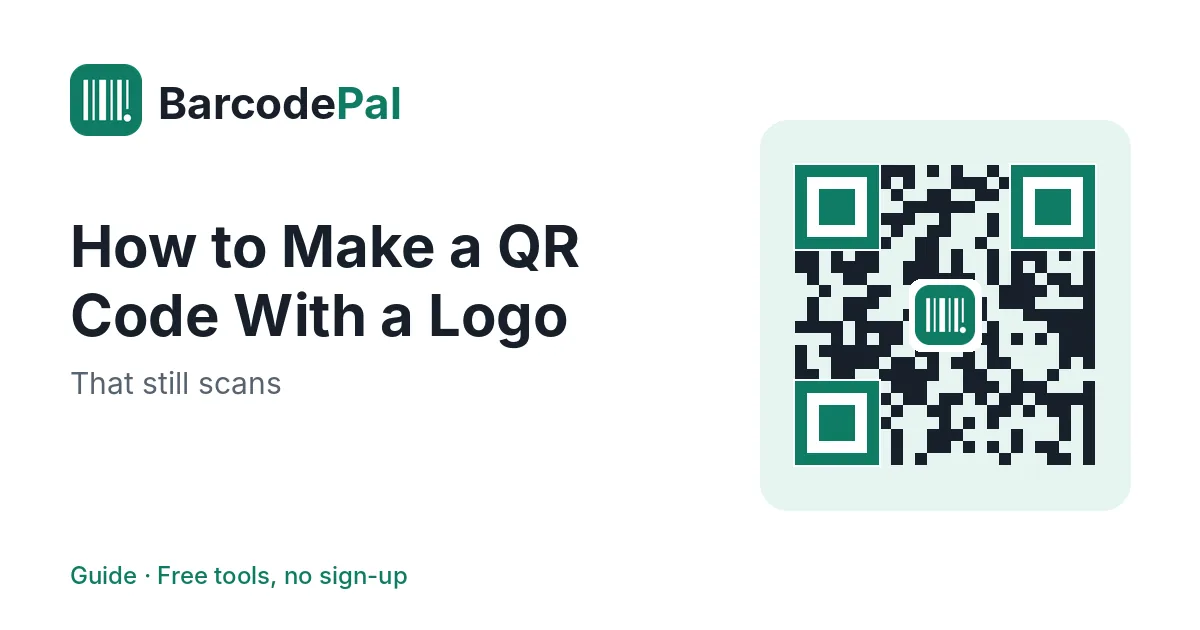
To make a QR code with a logo, create the code, upload your logo to place it in the centre, and keep the logo small, about 20–25% of the code at most. A QR code can still be read with part of it covered because of error correction, so use the highest level (H, about 30%). Keep dark dots on a light background, and always test with a few phones before printing.
Make a QR code with your logo →
Step by step
- Open the QR Code Generator and paste your link.
- Upload your logo (PNG with transparent background works best). Error correction is set to High automatically.
- Choose brand colours: keep the dots dark and the background light.
- Scan the preview with two or three different phones.
- Download SVG for print or a 1024–2048 px PNG for screens.
Design rules
- Logo size: up to about 20–25% of the code. Bigger logos cover too many modules.
- Contrast: dark dots on a light background. Light dots on dark backgrounds fail on many phones.
- Corners: the three big squares must stay complete and clear.
- Quiet zone: keep a white margin around the code.
- Short data: a shorter link makes a less dense code that scans faster with a logo.
Questions
Does a logo make the QR code less reliable?
A little, because it hides part of the data. With error correction H and a small logo, it scans reliably. Always test before printing.
Is a QR code with a logo free on BarcodePal?
Yes. Logos, colours and downloads are free, with no sign-up, and the code never expires.
Make a QR code with your logo →
More guides
- How to Get a Barcode for Your Product
- EAN vs UPC: What Is the Difference?
- Barcode Size Guide for Printing
- Amazon Barcodes: FNSKU vs UPC
- Static vs Dynamic QR Codes
- What Is a GTIN?
- How to Print Barcode Labels
- Barcode Not Scanning? How to Fix It
- Smallest QR Code and Barcode Size
Updated: